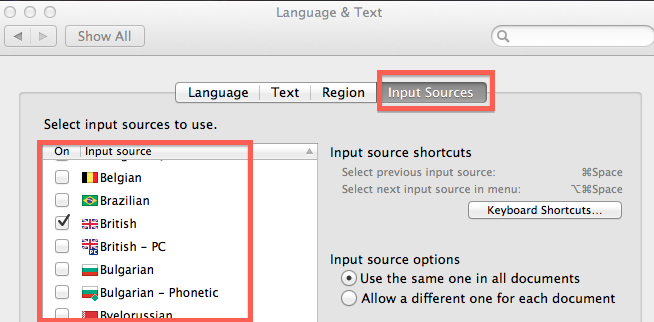
If you need to use a different language rather than the default language, English in this case, do the following:
1. Click on the System Preference Icon.
2. Inside System Preferences, click on the option for Language and Text.
3. Inside Language & Text select the option labelled Input Sources then place a check on the language(s) you wish to use.
4. To activate a language, go to the toolbar and click on the flag icon. Any additional languages added will appear below the main language.
05 September 2013
05 February 2013
Handy Keyboard Shortcuts for Windows and Mac computers
Here are some Handy Keyboard shortcuts to make using your computer a little bit easier.
Windows
Press the CTRL (Control) and C keys, at the same time, to Copy any selected text.
Press the CTRL (Control) and V keys, at the same time, to Paste that text somewhere else.
Press the ALT and PrtScr keys, at the same time, to capture a screenshot of the entire destop.
Use MS Paint (c:\windows\system32\mspaint.exe) to edit it.
Mac
Press the COMMAND (ALT) and C keys, at the same time, to Copy any selected text.
Press the COMMAND (ALT) and V Keys, at the same time, to Paste that text somewhere else.
If you have a Mac that has Windows installed on it, do the following to choose one or the other.
Restart Computer, keep COMMAND (ALT) key pressed until the selection menu appears.
Then selection the system you want to use.
28 January 2013
How to LOG OUT a Mac computer
For those students that may not be familiar with how to use a Mac the Log Out procedure may be a mystery.
To LOG OUT just move your mouse to the top right and click on the Apple logo, then a menu will appear. At the bottom of the menu their will an option to LOG OUT. Select this and the screen will return to the LOG IN screen.
You can also SHUT DOWN and RESTART the computer from here.
To LOG OUT just move your mouse to the top right and click on the Apple logo, then a menu will appear. At the bottom of the menu their will an option to LOG OUT. Select this and the screen will return to the LOG IN screen.
You can also SHUT DOWN and RESTART the computer from here.
11 March 2010
How to move from Mac to Windows and back on dual booted systems
04 June 2009
Free Windows Downloads
Here is a list of free windows tools you can download for free.
http://lifehacker.com/5271828/lifehacker-pack-2009-our-list-of-essential-free-windows-downloads
03 June 2009
Essential Windows XP keyboard shortcuts
Here are some shortcuts from Of Zen and Computing
- Bold: CTRL+B
- Bypass the autorun feature of a CD-ROM: Hold SHIFT as you insert the CD.
- Close the current window: ALT+F4.
- Copy: CTRL+C
- Cut: CTRL+X
- Delete an item without sending it to the recycle bin: SHIFT+DEL
- Display properties: ALT+double click
- Italic: CTRL+I
- Paste: CTRL+V
- Select all: CTRL+A
- Quick text selection:
- Select forward, word-by-word: CTRL+SHIFT+RIGHT ARROW
- Select backwards, word-by-word: CTRL+SHIFT+LEFT ARROW
- Select down, line-by-line: CTRL+SHIFT+DOWN ARROW
- Select up, line-by-line: CTRL+SHIFT+UP ARROW
- Start menu: CTRL+ESC (or the Windows key)
- Switch between multiple open windows in the same program: ALT+F6
- Switch between open programs: ALT+TAB
- System menu of main window: ALT+SPACE
- Underline: CTRL+U
- Undo: CTRL+Z
- Windows key + D to clear the desktop
24 January 2008
Finding MS Office documents on the computer
Problem:
A document being being worked on is saved but cannot be found anywhere!
Possible Location:
MS Office may have saved a copy in the Recent folder.
This folder contains links to the most recent activities in MS Office.

To find the Recent folder do the following:
1). Open My Computer
2). Open the C: drive
3). Open the Documents and Settings folder
4). Open the Libab folder
5). Open the Application Data folder (*this folder may be hidden)
6). Open the Microsoft folder
7). Open the Office Folder
8). Click on the Recent icon
The Recent folder will then appear.
Look through that folder and see if the missing document is there.
15 January 2008
USB drive cannot be found in My Computer
Sometimes, when you plug in a flash drive, it does not show up ... thus not giving you the access to the files that you need right NOW!
To explain this phenomena open the My Computer icon and notice that there are a number of drives with associated drive letters.
Normally the computer assigns the next free drive letter to any new device that is connected, but sometimes this does not happen. The computer wants to assign a drive letter to a device that is already taken. When this happens the device (USB drive, ect...) is connected but not available.
To solve this problem, the drive letter will need to be manually assigned.

The Computer Management window will appear, which can be modify certain aspects of windows.
2). From the left-hand side menu choose Disk Management.
The main window on the right should now display the drives (Volumes).

3). Scroll down the list of drives (Disk 0, Disk 1, ect...) and find the USB drive.
*It should be the one that does not have a letter assigned to it.
When the drive is found, right click on it and from the menu choose Change Drive Letter and Paths ...

4). From the Change Drive Letter and Paths ... window choose Change and from the dropdown, change the letter to G, or H (These are not normally used here) and then OK.
*A warning message may appear about changes the drive letter, normally this is not a problem, click OK or Close to continue.

When this is complete the drive will appear in the My Computer windows.
To explain this phenomena open the My Computer icon and notice that there are a number of drives with associated drive letters.
Normally the computer assigns the next free drive letter to any new device that is connected, but sometimes this does not happen. The computer wants to assign a drive letter to a device that is already taken. When this happens the device (USB drive, ect...) is connected but not available.To solve this problem, the drive letter will need to be manually assigned.
1). Go to the My Computer icon and right click on it.
Then choose Manage from the drop down menu.
The Computer Management window will appear, which can be modify certain aspects of windows.
2). From the left-hand side menu choose Disk Management.
The main window on the right should now display the drives (Volumes).

3). Scroll down the list of drives (Disk 0, Disk 1, ect...) and find the USB drive.
*It should be the one that does not have a letter assigned to it.
When the drive is found, right click on it and from the menu choose Change Drive Letter and Paths ...

4). From the Change Drive Letter and Paths ... window choose Change and from the dropdown, change the letter to G, or H (These are not normally used here) and then OK.
*A warning message may appear about changes the drive letter, normally this is not a problem, click OK or Close to continue.

When this is complete the drive will appear in the My Computer windows.
06 January 2008
Social Bookmarking explained
This is a nice three-minute video explaining how social bookmarking works in delicious.com
Thanks Mike.
Social Bookmarking using delicious
Thanks Mike.
Social Bookmarking using delicious
24 October 2007
Office 2007: How to save a file that will be compatible with older versions
As you may be aware, Microsoft Office 2007 files are a little bit different to their older siblings.
The easiest way to distinguish the new files are in the extensions. For example a file written in Word 2003 would look something mypaper.doc, while a file written in the Word 2007 would look like this mypaper.docx, Microsoft has added an X to the extensions.
This means, unless you the Compatibility Pack, you will not be able to open Office 2007 documents in Office 2003.
The Library now has a few computers running Office 2007, with this in mind here is a way that files can be saved that will be compatible with the older version.
1. Click on the Office button, located on the top left-hand side of the application. This is similar to the File Menu in older versions of Office.
2. Then go to Save As
3. Choose Word 97 - 2003 Document from the choices listed. This will allow you to save the document as a .doc file as opposed to a .docx file.
A document saved this way can be opened in older versions of Office without the need of any Compatibility Packs.
The easiest way to distinguish the new files are in the extensions. For example a file written in Word 2003 would look something mypaper.doc, while a file written in the Word 2007 would look like this mypaper.docx, Microsoft has added an X to the extensions.
This means, unless you the Compatibility Pack, you will not be able to open Office 2007 documents in Office 2003.
The Library now has a few computers running Office 2007, with this in mind here is a way that files can be saved that will be compatible with the older version.
2. Then go to Save As
3. Choose Word 97 - 2003 Document from the choices listed. This will allow you to save the document as a .doc file as opposed to a .docx file.
A document saved this way can be opened in older versions of Office without the need of any Compatibility Packs.
04 October 2007
Printing Problems
Sometimes printing from the web can be a bit of a kerfuffle, so here are some tips to help you and in tern help others.
- Pressing the CTRL & P together will bring up the print window. Use this to print when no print button is available.
- When printing from a web page always do a Print Preview first, this will let you see what will be printed. Use this to make sure that it will not print junk and thus waste paper and print credit.
- If a patron cannot print, but has sufficient print credit, check the printer settings to see what it's printing to. All of the computers are set to print to the closest printer, but sometimes the computer goes mad and tries to print to something else.
27 September 2007
USB Drives and Opening Files

USB drives have become commonplace for students these days and the ability to be able to help them access their data has become very important.
The following are some tips and tricks for dealing with USB drives and our computers.
- Many USB drives will not fit properly in the front USB port of the InfoCommons computer. To make sure they have a good connection, use the USB ports in the back of the computer.
- If the USB drive is not detecting properly, restart the computer. Many times that will fix an array of problems caused by previous students.
- If a student is trying to open a file from the USB Drive and it cannot, try copying the file to the desktop. Then try and open the file.
- Some WordPerfect files (those with the .WPS extension) cannot seem to be opened by WordPerfect program on our computers.
13 September 2007
Blackboard Vista Tips and Tricks
There seems to be some computer shenanigans going on when it comes to opening a document from Blackboard Vista.
The problem lies in the fact that Internet Explorer and Firefox are trying to protect us from Evil popups, but because the inbuilt popup blockers cannot discriminate between a good and bad popup, we are left document-less.
The Solution!
If a patron is having this problem then check for a new message bar below the address bar.
Click on the bar and choose Download File (as shown above).
This will take you back to the Blackboard Vista class listing, just go back to the class with the document the patron wishes to open and click on the link to it again.
This is the window that should now come up.
Now the patron is free to choose what he or she would want to do with the document.
The problem lies in the fact that Internet Explorer and Firefox are trying to protect us from Evil popups, but because the inbuilt popup blockers cannot discriminate between a good and bad popup, we are left document-less.
The Solution!
If a patron is having this problem then check for a new message bar below the address bar.
Click on the bar and choose Download File (as shown above).This will take you back to the Blackboard Vista class listing, just go back to the class with the document the patron wishes to open and click on the link to it again.
This is the window that should now come up.
Now the patron is free to choose what he or she would want to do with the document.
Info Commons Tips & Tricks
Here are some tips to help you help our patrons, if I'm not around ... "Knowledge is Power".
1. If the keyboard or mouse on a computer does not work properly try the following.
a) Shut down the computer
b) Check the keyboard and mouse connections on the back of the computer, make sure that they are plugged in all the way.
c) Turn the computer back on again.
2. If a patron is having problems with printing from a document, try printing it as a PDF first. Then the patron will have a PDF copy of a document that is smaller than the original.
To do print to a PDF, do the following.
a) Go to File, then Print from the File Menu Options.
31 July 2007
Word 2007 Toolbar ... what happened!

For those that have had a chance to look at the new Office 2007 may have noticed how different it is to the current version, Office 2003.
The biggest change is the layout, all the tools that traditionally were accessed via dropdown menus are now accessed via icons. Microsoft has opted for a more visual menu system, studies have found that people assimilate information better when images are included.
This is part of the interesting field of Visual Learning but that's another story.
Stay tuned for more information.
25 July 2007
Word 2003 Tip 1
If your Word or PowerPoint document is too large because of large images that have been inserted then this will help decrease the size of the document.
1. Right click on any of the pictures in your document or presentation.
2. Choose Format Picture from the menu that appears.
3. From the window that appears, select the Picture tab.
4. Now click on the Compress button as show below.
You will be asked whether you want the selected image or all images compressed.
After compressing the images the document will be smaller.
1. Right click on any of the pictures in your document or presentation.
2. Choose Format Picture from the menu that appears.
3. From the window that appears, select the Picture tab.
4. Now click on the Compress button as show below.
You will be asked whether you want the selected image or all images compressed.After compressing the images the document will be smaller.
11 July 2007
BLOGS, WIKIS, RSS
Technology seems to always be a step ahead of us and the past few years
certain technologies have become available to make collaboration, information exchange, and information management easier to use.
This learning session go over some of the basics of Blogs, Wikis, and RSS.
BLOGS
A Blog is short for Web Log is a page that allows you to post information, pictures, stories ... actually anything you want for all the world to see.
Blogs fall into the category of Social media, which can take many forms which include text, images, audio, and video.
According to estimates there are approximately between 50 to 70 million blogs on the internet today.
Blogs are a great way to present personal ideas or information as well as professional information to a world audience without having to pay an Internet Service Provider for server space and an internet domain name.
Contents of blogs range from person thoughts and ideas to Corporate blogs, one example is Google's blog.
There are many blogs covering many different topics and finding one that will interest you may seem like a insurmountable task.
Luckily there are tools available to help, there tools include:
Use one of the listed blog search engines to find information about anything that you may find interesting.
This material is placed in a popular blogging tool called Blogger.
Other blog sites include:
Exercise:
If you have not created a blog, take the time to now to create one using a free blog hosting site of your choice. After creating a blog, post something there and then have someone else read it and comment on it.
Since Blogs are not real time and do not have time restrictons then this can be a very useful medium to communicate information to many people.
WIKIS
The word wiki is a shorter form of "wiki wiki" which is native Hawaiian for something that is "quick" or "fast.” The concept of a wiki is that of an electronic document that can be edited by more than one person, this enables collaboration between people anywhere in the world.
Wikis can be used to work on personal or family information, for example of this would of a family creating a wiki that would contain family events and history that can be modified and added to by any member of the family.
Wikis can also be used by businesses to collaborate on documentation by people who live in different cities, or even different countries. A company may choose to purchase their own wiki software to make it more secure.
One of the best examples of Wiki at work is Wikipedia, this website allows people to create entries based on any subject or topic and then allow others to correct or add to the information that is placed there.
Other Wiki projects include:
Explore some of the listed sites and become familar with the information and services they provide.
As with blogs, there are many company's providing free services for anyone who wants to create a wiki or who is looking for a wiki community to join.
There following companies offer free wiki accounts:
Exercise:
Create a wiki for yourself and ask some people that you know to add of modify the content.
Wikis can be a useful tool when it comes to collaboration involving a document between multiple people. From tutorials and business plans, the potential of wikis in helping people work together are limitless.
RSS
Imagine you have all your favourite websites bookmarked, these may include news, information, and other interesting sites.
Now imagine that, to find something interesting, you have to scan all those bookmarks manually and this could potentially take a long time. Time which most people don't have.

For this problem there is a solution, RSS.
RSS stands for Really Simple Syndication. This technology allows a person to subscribe to a website and view a brief description of news from that site.
Technically speaking the information to be displayed is called a feed and the program that will display the information is called an aggregator. RSS uses XML which means that feeds are constantly updated.
Not all website's are set up to "feed" content via an RSS aggregator.
There are icons that denote that an RSS feed is available.
Here are some common ones.

If you are using the Firefox browser then the aggregator is built right into it.
To know if a particular page contains an RSS feed the check the address bar to see if the RSS icon appears. Below is an example of a website with an RSS "feed" icon in the address bar.

Adding a feed is as simple as clicking on the RSS icon and after it is done the RSS feed will look like the following.

Exercise
Go to your favourite websites and see if they are RSS enabled. If you don't have any favourite sites use Google or another search engine and find a website that interests you and see if it is RSS enabled.
RSS can help you manage all your information quickly and efficiently.
certain technologies have become available to make collaboration, information exchange, and information management easier to use.
This learning session go over some of the basics of Blogs, Wikis, and RSS.
BLOGS
A Blog is short for Web Log is a page that allows you to post information, pictures, stories ... actually anything you want for all the world to see.
Blogs fall into the category of Social media, which can take many forms which include text, images, audio, and video.
According to estimates there are approximately between 50 to 70 million blogs on the internet today.
Blogs are a great way to present personal ideas or information as well as professional information to a world audience without having to pay an Internet Service Provider for server space and an internet domain name.
Contents of blogs range from person thoughts and ideas to Corporate blogs, one example is Google's blog.
Google's Offical Blog
There are many blogs covering many different topics and finding one that will interest you may seem like a insurmountable task.
Luckily there are tools available to help, there tools include:
- Technocrati
- Yahoo
- IceRocket
- many more
Use one of the listed blog search engines to find information about anything that you may find interesting.
This material is placed in a popular blogging tool called Blogger.
Other blog sites include:
Exercise:
If you have not created a blog, take the time to now to create one using a free blog hosting site of your choice. After creating a blog, post something there and then have someone else read it and comment on it.
Since Blogs are not real time and do not have time restrictons then this can be a very useful medium to communicate information to many people.
WIKIS
The word wiki is a shorter form of "wiki wiki" which is native Hawaiian for something that is "quick" or "fast.” The concept of a wiki is that of an electronic document that can be edited by more than one person, this enables collaboration between people anywhere in the world.
Wikis can be used to work on personal or family information, for example of this would of a family creating a wiki that would contain family events and history that can be modified and added to by any member of the family.
Wikis can also be used by businesses to collaborate on documentation by people who live in different cities, or even different countries. A company may choose to purchase their own wiki software to make it more secure.
One of the best examples of Wiki at work is Wikipedia, this website allows people to create entries based on any subject or topic and then allow others to correct or add to the information that is placed there.
- Wiktionary
- Wikiversity
- Wiki travel
- Wikimapia
- and there are many more.
Explore some of the listed sites and become familar with the information and services they provide.
As with blogs, there are many company's providing free services for anyone who wants to create a wiki or who is looking for a wiki community to join.
There following companies offer free wiki accounts:
Exercise:
Create a wiki for yourself and ask some people that you know to add of modify the content.
Wikis can be a useful tool when it comes to collaboration involving a document between multiple people. From tutorials and business plans, the potential of wikis in helping people work together are limitless.
Imagine you have all your favourite websites bookmarked, these may include news, information, and other interesting sites.
Now imagine that, to find something interesting, you have to scan all those bookmarks manually and this could potentially take a long time. Time which most people don't have.

For this problem there is a solution, RSS.
RSS stands for Really Simple Syndication. This technology allows a person to subscribe to a website and view a brief description of news from that site.
Technically speaking the information to be displayed is called a feed and the program that will display the information is called an aggregator. RSS uses XML which means that feeds are constantly updated.
Not all website's are set up to "feed" content via an RSS aggregator.
There are icons that denote that an RSS feed is available.Here are some common ones.

If you are using the Firefox browser then the aggregator is built right into it.
To know if a particular page contains an RSS feed the check the address bar to see if the RSS icon appears. Below is an example of a website with an RSS "feed" icon in the address bar.

Adding a feed is as simple as clicking on the RSS icon and after it is done the RSS feed will look like the following.

Exercise
Go to your favourite websites and see if they are RSS enabled. If you don't have any favourite sites use Google or another search engine and find a website that interests you and see if it is RSS enabled.
RSS can help you manage all your information quickly and efficiently.
Subscribe to:
Posts (Atom)